Introduction
A familiar way to explore. A different kind of ownership.
Meet OpenXplorer#
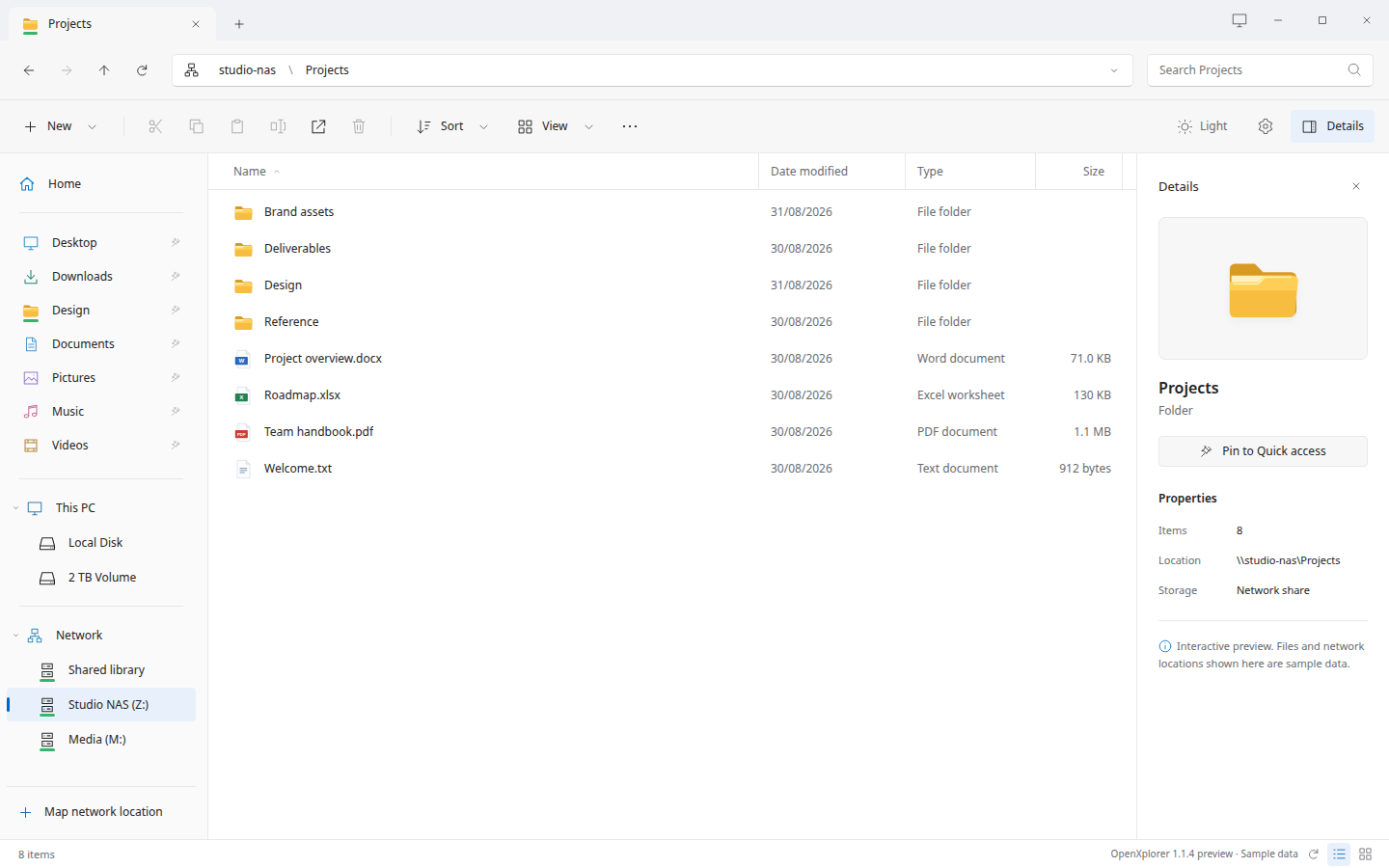
OpenXplorer is a Windows File Explorer-inspired file manager for Linux, built for Zorin OS and intended to extend to compatible Ubuntu and Debian installations. It brings a familiar tabbed interface to your local folders and SMB shares.
Previously called Winspace, the project is now published as OpenXplorer. The desktop application and this website are distributed under AGPL-3.0-only; original third-party notices remain intact.
Your files. Your network. Your workflow.#
Navigate with clickable breadcrumbs, pin folders, type to select a filename, resize columns, and use either a classic or compact context menu. Search opted-in filename indexes, browse ZIP contents read-only, and inspect existing exposed snapshots.
The interactive preview runs the same HTML, CSS, icons and controls as the desktop application, with a simulated storage adapter. It cannot access your computer, NAS, browser settings or keyring. On a desktop-sized screen, use the preview controls to open a fictional sample NAS, switch appearance, or replay a pinning walkthrough. The interactive explorer is intentionally not loaded on phones; the documentation and screenshots remain available.
- Local files and SMB shares in one interface.
- A searchable Settings page, with explicit controls for desktop integration.
- Source included alongside the installer; no account needed to use the app.
Double-click a folder, try a right-click, or drag a folder to the sidebar. No access to your files, NAS or credentials.
Native storage. Local interface.#
The desktop app is Python with GTK 3 and WebKitGTK. Its HTML/CSS/JavaScript interface is loaded locally. GIO/GVfs provides the filesystem and SMB layer; SQLite stores the optional filename index. This Next.js website is separate and is not required to run the app.
Know what you are installing#
Version 1.1.4 keeps in-app updates working after the repository moves to the openxplorer GitHub organization. Check for updates is beside the bottom-right view controls. Zorin is the primary target; Ubuntu and Debian compatibility depends on the declared APT dependencies and desktop integration.
Use a disposable folder and a non-critical share first. Native Zorin/WebKit, live NAS access, keyring behavior, and browser/portal integration have not been validated in the release environment.
Start with one folder#
Read Installation, open your home directory, and test a network share. Enable indexing and default-file-manager integration only after checking basic file operations.